Graphic Design

Give Thanks printable

Well, it’s almost Thanksgiving. Holy moly, it is early this year. Thanksgiving is always crazy for us because we travel to Ohio to see my dad’s family. That doesn’t sound too crazy, but when you consider that we go up on Wednesday night and come back Saturday morning and that it is a 9-hour drive… well, you see what I’m talking about. But family is family, so we suck it up and go. And we have a great time 🙂

Today’s post is another graphic design tutorial using screen caps in InDesign. Let’s do this!

I wanted to make a “Give Thanks” printable/computer background for the month of November, so I opened up a new InDesign doc and got to work.

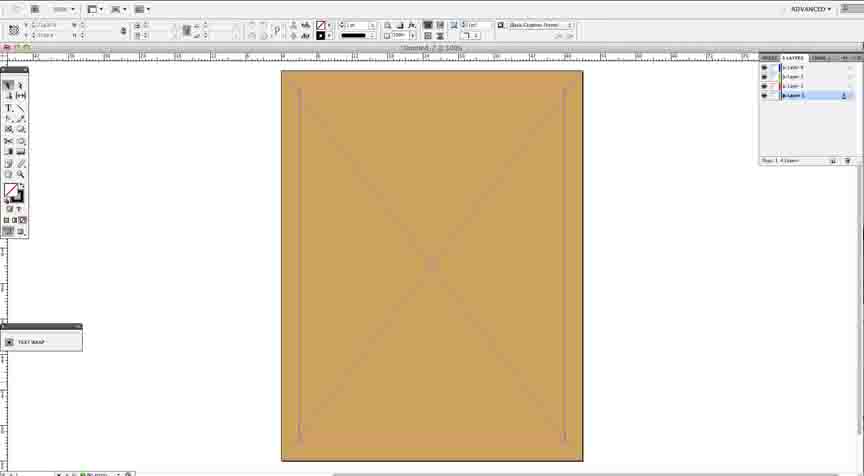
Since Fall has such rich, warm tones, I chose an orange for the background by dragging a box to the edges of the paper and filling it.
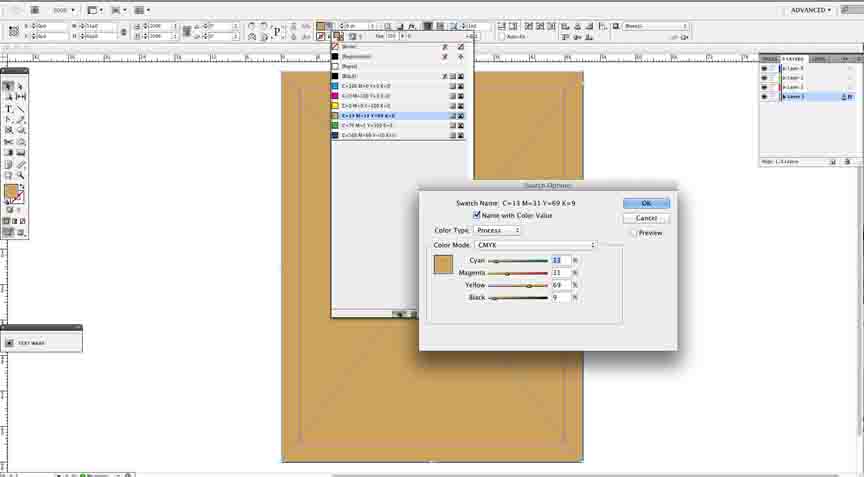
I adjusted my orange using the CMYK sliders.
In a second layer, I made this cross-looking design using the font Soft Ornaments Six. This shape is four “letters” rotated and joined together.
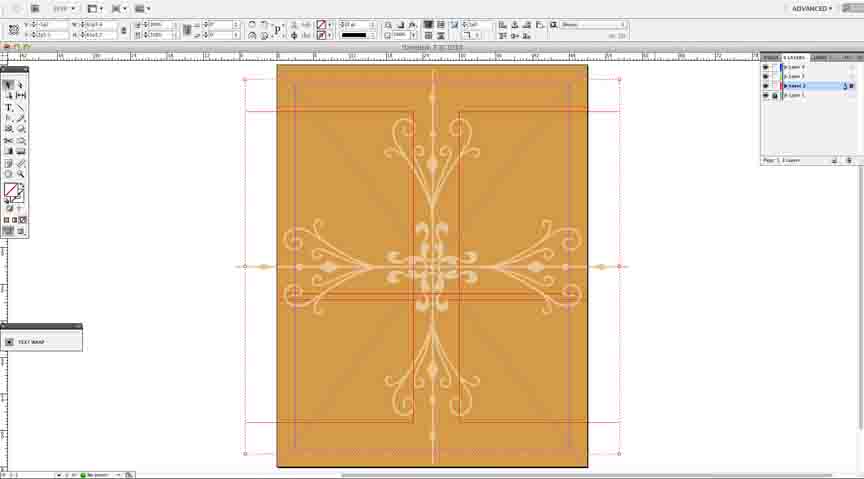
I liked this look, so I grouped the four “letters” together, then copied and pasted them into another layer. I rotated them so the cross became a snowflake-y design.

Then I added my words. I put them into one text box at first before I started to manipulate the text.
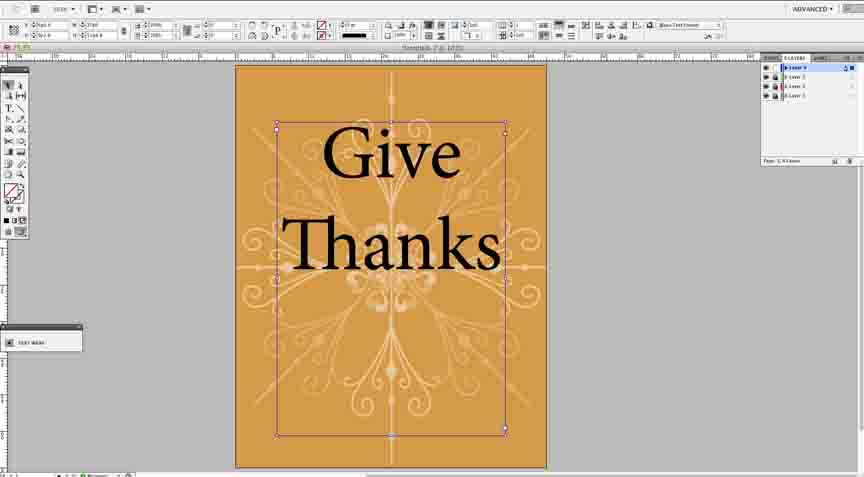
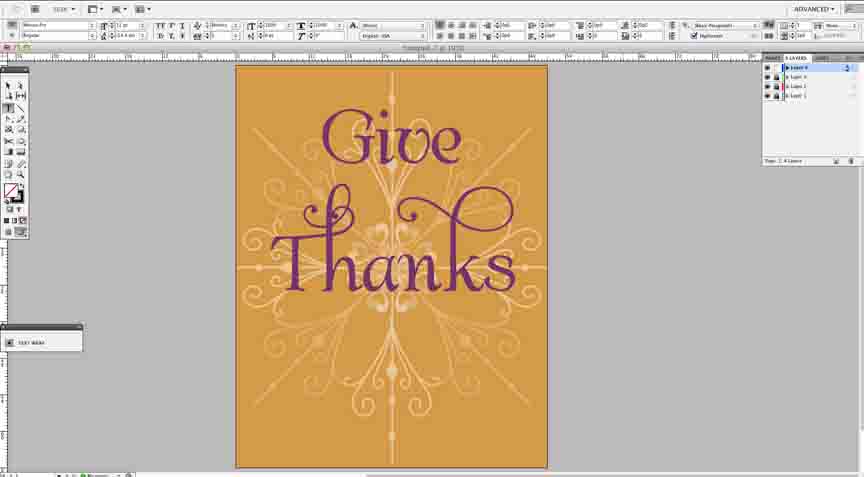
I found a font I like called Albemarle Swash, so I changed my text to that font and started playing with colors. First purple.
Nope. Then light blue with a brown background…
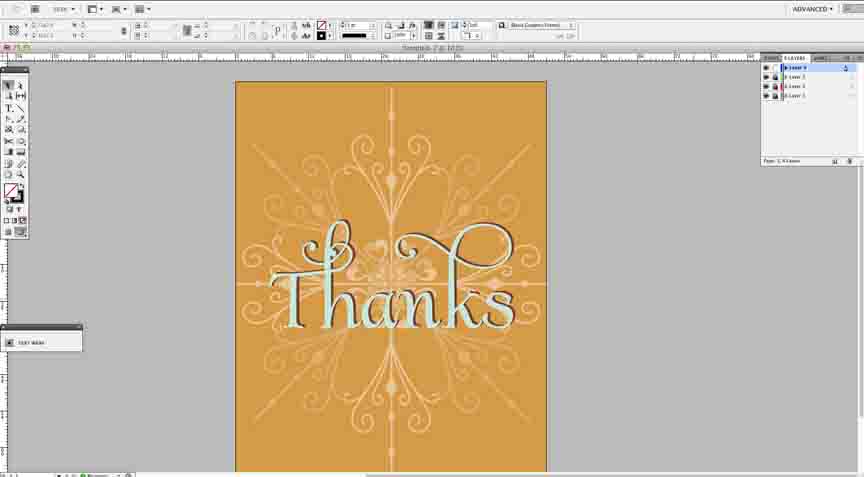
And then I changed “give” to be smaller and all lowercase, resting it on the upper curl of the “k.”
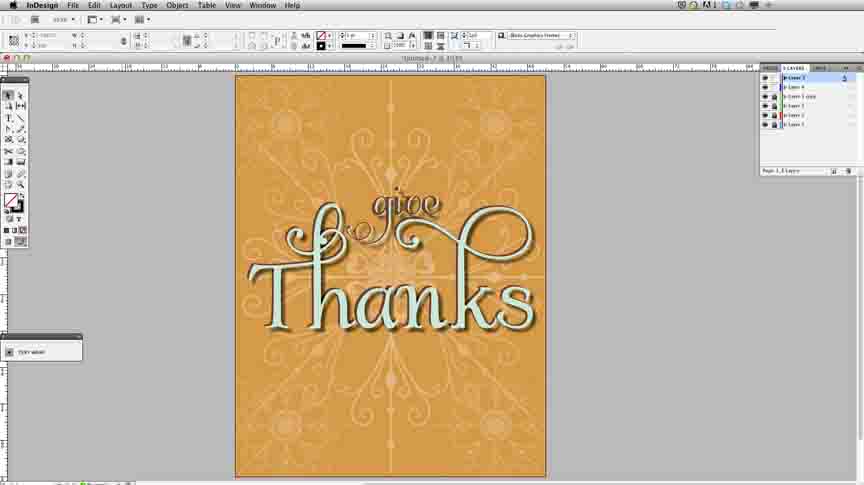
… and then I got tired of looking at orange. Shocker. I can’t stay away from blue, no matter how hard I try. I also made the document a square instead of a rectangle and changed my text to black.
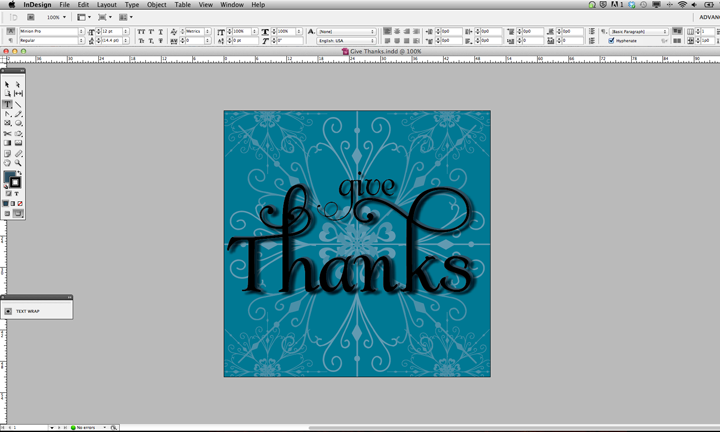
I like how it turned out, even though the colors have nothing to do with the fall. In the blue, the background looks more like a snowflake, which means I can use this as my background all through the winter.

Feel free to download this printable, and remember to give thanks!

Things I am thankful for:

  • My husband
  • My family
  • My friends
  • My pup
  • My job and my awesome coworkers
  • My new and awesome neighbors
  • My house. Gosh, I love my house.
  • My blog and all of my followers!
  • …. and so many other things.
Graphic Design

I {heart} You printable

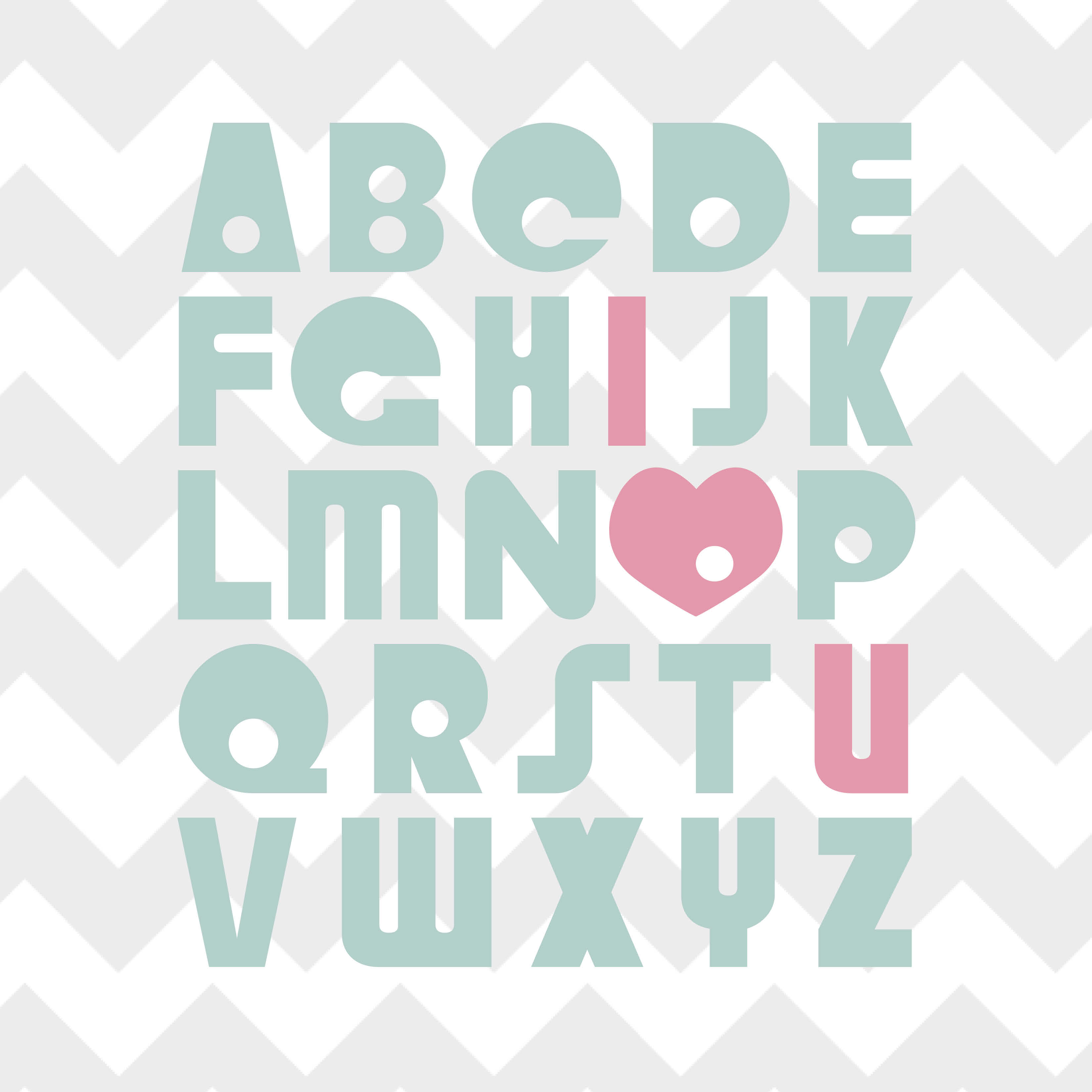
Did you know you can search for “free _____ background” on Google images and download pre-created, fun backgrounds for your design projects? I’ve used this new tip a few times now, downloading a free brick background for the Occasional Symphony poster I designed and a gray chevron background for today’s printable. I’m sure you’ve seen the cute “I {heart} You” printables floating around Pinterest where the I, O and U are a different color from the rest of the alphabet… and the O is a heart (cause otherwise you’d be making a cute sign to tell someone you owe them something and that would be weird….). Well, it was too fun and too cute to not make a version of my own. So, with a free chevron pattern in my back pocket/ downloads folder, I set out to create my own.

For this printable, I used a heart that I created myself in Adobe Illustrator and the font Crystal Radio Kit. Isn’t it a fun, bubbly font? So cute.

I grabbed the gray chevron print from google and faded it down to about 30 percent so it wouldn’t completely overwhelm the letters. Then, I picked colors for my letters, and a fun pink for the three stand-out letters. To get everything into a square, I justified the text and played with the kerning between individual letters.

Download here: IheartU

Loveeeeee it. Need a copy of your own? Download it! Want to make one for yourself — do it! And then show me how cute it is 🙂

Graphic Design

The only BOSS I answer to…

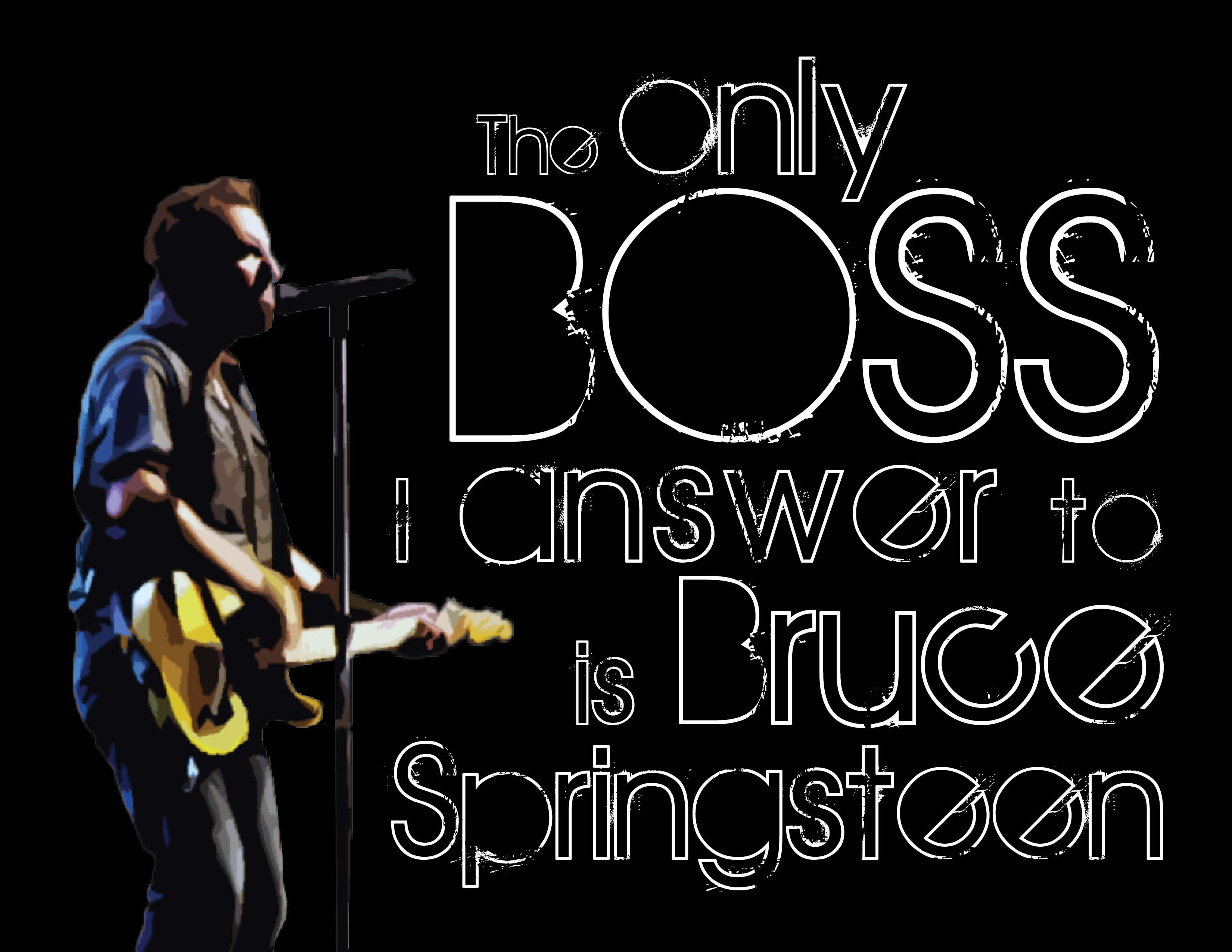
Guess who gets to see Bruce Springsteen again in concert on September 14th!?!?!?!?!?! If you guessed me, you guessed right. I’m extra excited for this concert and I’m pretty much listening to Springsteen 24/7. SOOOOOO… with that being said, I made myself a new background for my computer/ a new print for my craft room so I can be extra extra pumped up! I took a few screen caps along the way to kind of show the process I took to create this awesome piece of art. I am in love.

First, I created a single text box in InDesign and typed my phrase, “The only boss I listen to is Springsteen.”

I pulled up my Mac Font Book and started scrolling through the fonts, choosing different ones I thought might look nice for this piece. I probably went through about 10 of so before picking the one I ended up with (not the one below).

Then, I highlighted the word “boss” and made it all caps using the TT/caps tool in InDesign.

I didn’t screen cap this next part (sorry!). I went to everystockphoto.com and search for Springsteen photos. I found one for free that I downloaded and opened in PhotoShop. I did a quick cutout, removing the other singers and background so only Springsteen, his guitar and his microphone stand are visible. I then applied a filter to the image so it looks a little like water color paint. I really liked the effect, so I saved my PSD file and imported it into InDesign.

I also changed the wording up a bit, swapping in “answer” for “listen” and adding “Bruce.” The original saying I’d seen before (I bought my Dad a T-shirt with it on it, actually!), so I tweaked it to make it my own version.

Once I got the Boss in there, I hated the font I originally chose, so I switched to the font I ended up with: The Maple Origins.

I then started breaking my text up, creating individual text boxes for almost each word to allow me to space them the way I wanted them to look. That also allowed me to change the font size of individual words instead of groups of words.

Once that was complete, it needed something else. I created a black background and turned the text white to accomplish this look (if you look closely you can see the text boxes and guides I used).

Once I was happy with all of the spacing, I exported my file to a JPEG, and tada! Isn’t it awesome!?

If you are not a Springsteen fan, you probably won’t care much about this. But hopefully you can use some of the steps to create your own works of art using InDesign. There’s so much you can do!

What do you think? Awesome, right?

Gotta love the Boss 🙂